Data-driven production for Photoshop & Illustrator
One Adobe template. Thousands of production-ready designs.
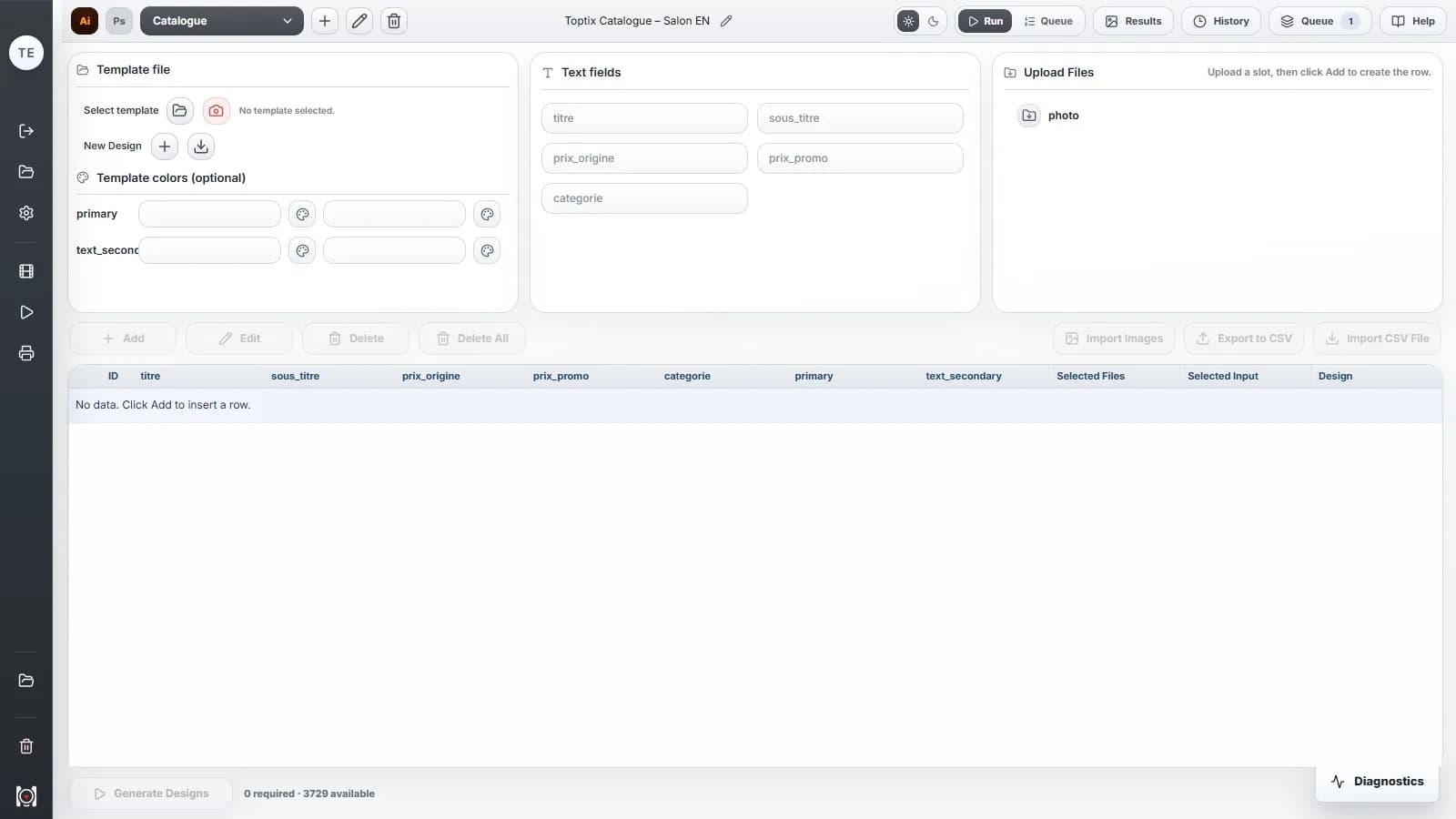
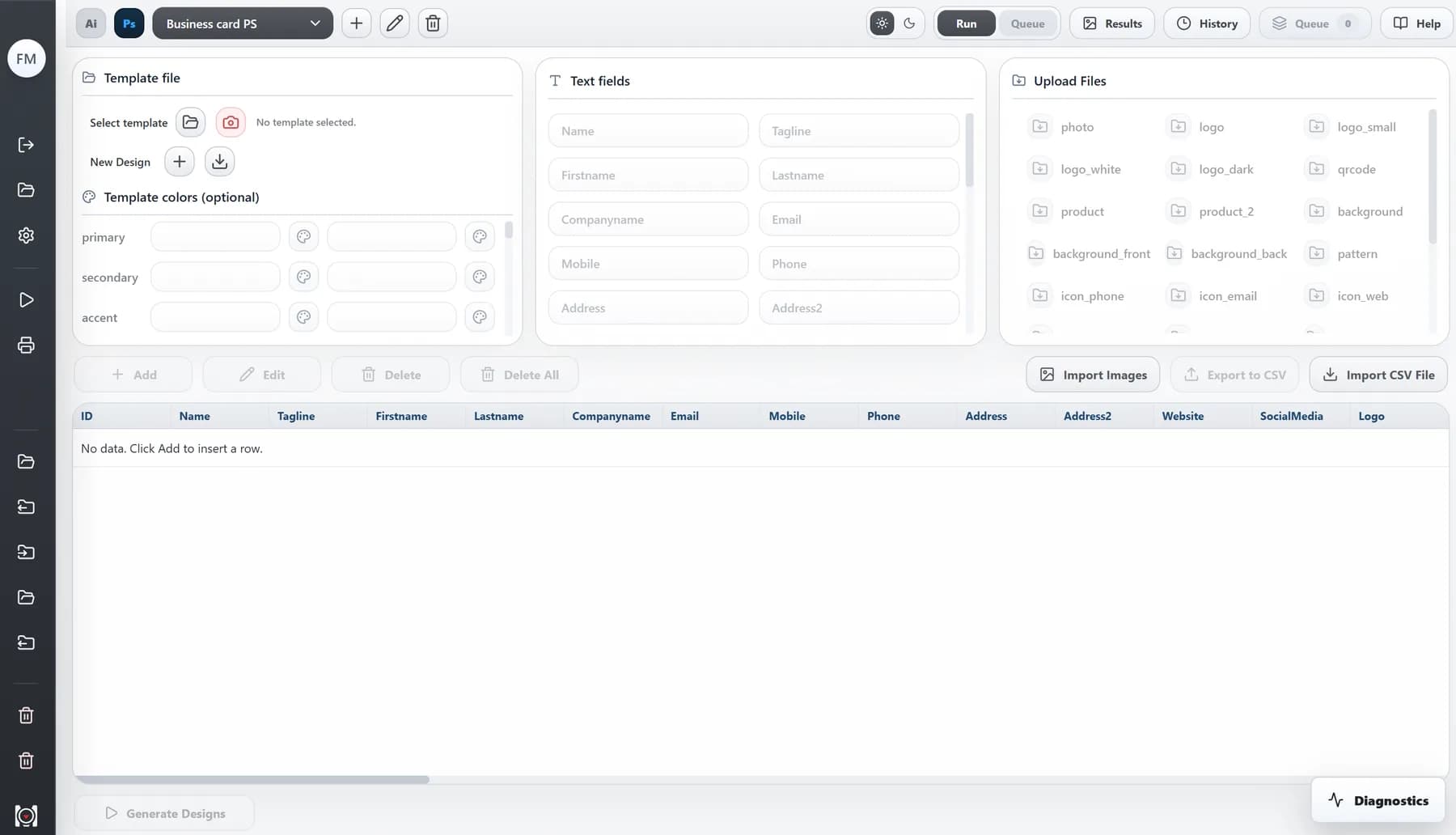
MagicOptix combines your Photoshop or Illustrator templates with CSV data to generate editable designs, mockups, and print-ready files — locally on your computer.
Multiple templates per batchCSV and image-drivenEditable Adobe outputsProcessed locally
Design once. Let MagicOptix handle the variations.
PsAi
collection.psd
{NOM}↔
{PRIX}↔
01Your template
Start with your design.
Choose your Photoshop or Illustrator file. Keep your layout and select the text and images to replace.
CSVproduits.csv↗
NamePrice
Nova armchair249 €
Leo table89 €
Sora lamp39 €
Imported photo folder✓
02Your data and photos
Add what changes.
Import your CSV table for names, prices and other data, then a photo folder into MagicOptix. Link these contents to the elements in your template.
COLLECTIONNova armchair249 €✓
COLLECTIONLeo table89 €✓
COLLECTIONSora lamp39 €✓
✓ PSD · AI · PDF · PNG
03Your variations
Run. You’re ready.
MagicOptix generates your variations. Review the results and collect your editable files and exports.
MORE THAN VARIATIONS
Your entire Adobe production. One space to stay in control.
Find your designs, connect your tools and manage your batches. Keep your work organized, from one production run to the next.
MagicOptix
⌕ Spring collection
Catalogue
Collection
Studio
↺ Past designs and results
01 · Centralize
Find it. Reuse it.
Your designs and results in one workspace. Find a project, even months later, and build on the work you’ve already done.
MagicOptix
AiIllustrator design→PsPhotoshop mockup
02 · Connect
From design to mockup.
Create in Illustrator, then showcase your design in a Photoshop mockup. Two Adobe tools, one production workflow.
MagicOptix
Production queue3
✓Summer catalogCompleted
◷MockupsRunning
ⅡListingsQueued
▶ ■ ↺ Start · Stop · History
03 · Control
Stay in control.
Organize your queue, track executions, stop or restart a production run. Keep its history within reach.
MagicOptix
▱ Photo folder↗
↓ ↓ ↓
Image 1Image 2Image 3
Multiple image slots, one import
04 · Import
Bring images in bulk.
Import a photo folder to populate multiple image slots. Prepare your batches without replacing every image by hand.
Prepared by the designer. Reused by the team.
The designer prepares the templates and mappings once. The team then imports new data and photos, launches batches and reviews the results.
The solution
Turn repeatable Adobe work into a controlled production system.
Connect templates, map data and assets, run production, review results, and keep your outputs editable inside the Adobe workflow your team already uses.
Select Templates
Map text, images, colors, and data
Run now or queue production
Review results
Keep outputs editable
Core capabilities
Work across multiple templates at once
Select and configure several Photoshop or Illustrator templates in the same session, using real native files — not a converted copy — without reopening the app between designs.
Run now, or queue for later
Generate immediately, or save designs to a batch queue — pause, resume, or reorder runs without losing progress.
Three workflows, one tool
Generate the design, apply it to a mockup, or prepare a print-ready file — all from the same template and data.
Smart CSV and asset matching
MagicOptix matches your CSV columns and image files to the right template fields automatically — no manual remapping for every batch.
Export in the format you need
PDF, PNG, JPG, PSD, or AI — choose the formats supported by each app and workflow.
Full run history, one click to redo
Every batch is saved with its results — reopen it, rerun it exactly, or load any past design back into the editor.
From one approved Photoshop design, produce each team member's card, the client mockup and the press-ready sheet.
Step 01
Select the templates. Pick the approved front and back business card templates in Photoshop.
MagicOptix workflow
Step 1 of 4
Production impact
120 employees × front and back = 240 card designs with client mockups and imposed print sheets from one data file.
Card frontsCard backsMockupsPrint sheets
Product trust
A real desktop + platform system.
MagicOptix combines local desktop execution with account-based activation, licensing, device visibility, and a customer portal.
Local desktop execution
Your Photoshop and Illustrator files never leave your machine — MagicOptix runs locally, using the Adobe apps you already have installed.
Account-based activation
Sign in once, activate your license, and pick up your workspace on any authorized device.
License and device management
See and manage every device tied to your account, with the ability to revoke and transfer access yourself.
Customer portal
Manage your plan, billing, and devices from one account — no support ticket required for routine changes.
Billing-ready platform
Subscriptions, usage, and plan changes are handled by a real billing platform, not a spreadsheet.
Workflow history and results visibility
Every run is saved with its results, so nothing you've produced is ever a black box.
No hardware fingerprinting — ever.
MagicOptix never collects your MAC address or a device fingerprint. Devices are identified by a random ID generated at install, nothing tied to your hardware.
MagicOptix is not just a script. It is a controlled production system for Adobe-based workflows.
ROI estimate
MagicOptix pays off when the workflow repeats.
The ROI depends on your production volume, manual time, error rate, and how often the workflow repeats. Adjust the numbers below to estimate your own.
10 templates × 100 data rows = 1,000 variations
An example with every row applied to all 10 templates. You can also route selected rows to specific templates. Export formats determine the number of files produced.
To estimate your savings, enter your monthly volume and timings suited to your templates, exports and computer below.
Default based on a measured run: 20 different templates (front + back, 3 export formats each) finished in 3m40s, ~5.5s per variation. That run opens a new template each time, which is the slower case — one template reused across many rows is typically faster. Adjust it or use a real run from a Workflow Fit Review.
Manual time / month13 h
MagicOptix time / month0.2 h
Time saved / month13 h
Estimated monthly value€611
Potential ROI on the Pro plan+517%
Pays for itself inAbout 5 days / month
Based on these numbers, this looks like a strong fit.
We review one recurring Adobe workflow, estimate its production volume, identify preparation requirements, and tell you honestly whether MagicOptix is a good fit — free, no obligation.
Review one real workflow, start to finish
Check template structure and data sources
Estimate template × data-row production volume
Clear fit, partial fit, or no-fit recommendation
Workflow fitStrong
Template readinessReview needed
Data readinessStructured CSV
Potential volume1,200 designs / month
Best first workflowProduct image variations
Recommended planPro
Pricing
Start free. Scale when it works.
Prove the workflow on one real template — free. Then choose the level that matches your production rhythm. 1 credit = 1 successful personalized generation, all export formats included: one Design row × template, one final Compose composition, or one final Print generation.
Freemium
The first step
€0forever
Test the entire workflow on your own templates, without spending a cent.
For teams that want their first MagicOptix workflow configured, validated, and ready to use with real Adobe files — a hands-on onboarding service, separate from your subscription.
First real workflow configured and validated
One Adobe template reviewed, one data source connected
Desktop, license, and device activation
One onboarding session included
Priority support for the first 30 days
FAQ
The essentials before you get started.
Will this work with our existing Photoshop or Illustrator files?
That depends on how the files are structured. MagicOptix is strongest when templates are stable enough to map text, images, colors, and output logic. The Workflow Fit Review checks this before a rollout.
Can we start with one workflow only?
Yes. That is the recommended path: validate MagicOptix on one real, repeatable workflow, measure the value, then expand only when the first use case works.
Can outputs stay editable?
Yes. MagicOptix works with real Photoshop and Illustrator files, so supported PSD and AI outputs can remain part of an editable Adobe workflow instead of ending as flattened generated images.
Why credits instead of a flat per-file price?
One credit equals one successful personalized generation: one data row applied to one design template, one final Compose composition, or one final Print generation. For example, 100 rows applied to two templates require 200 credits, while routing each row to only one template requires 100. PDF, PNG, JPG, PSD or AI exports, pages, and multiple artboards are included and are never charged separately.
Does MagicOptix work without an internet connection?
Partially. During a short connection interruption, you can continue browsing the workspace and preparing a production. Starting or resuming a Design, Compose, Print, or batch production requires an internet connection so MagicOptix can verify access and reserve the required credits.
What happens if the connection drops during a generation?
A production that was already verified and started can finish normally. Its successful results are recorded locally and the final credit consumption is synchronized when the connection returns.
Looking for details about setup, credits, Offline mode, or workflow reviews?
Send us one real workflow. We will help you understand if MagicOptix can reduce manual work, lower production errors, and create a repeatable Adobe workflow.